Tools Usage
🛠️ General Tools and Usage
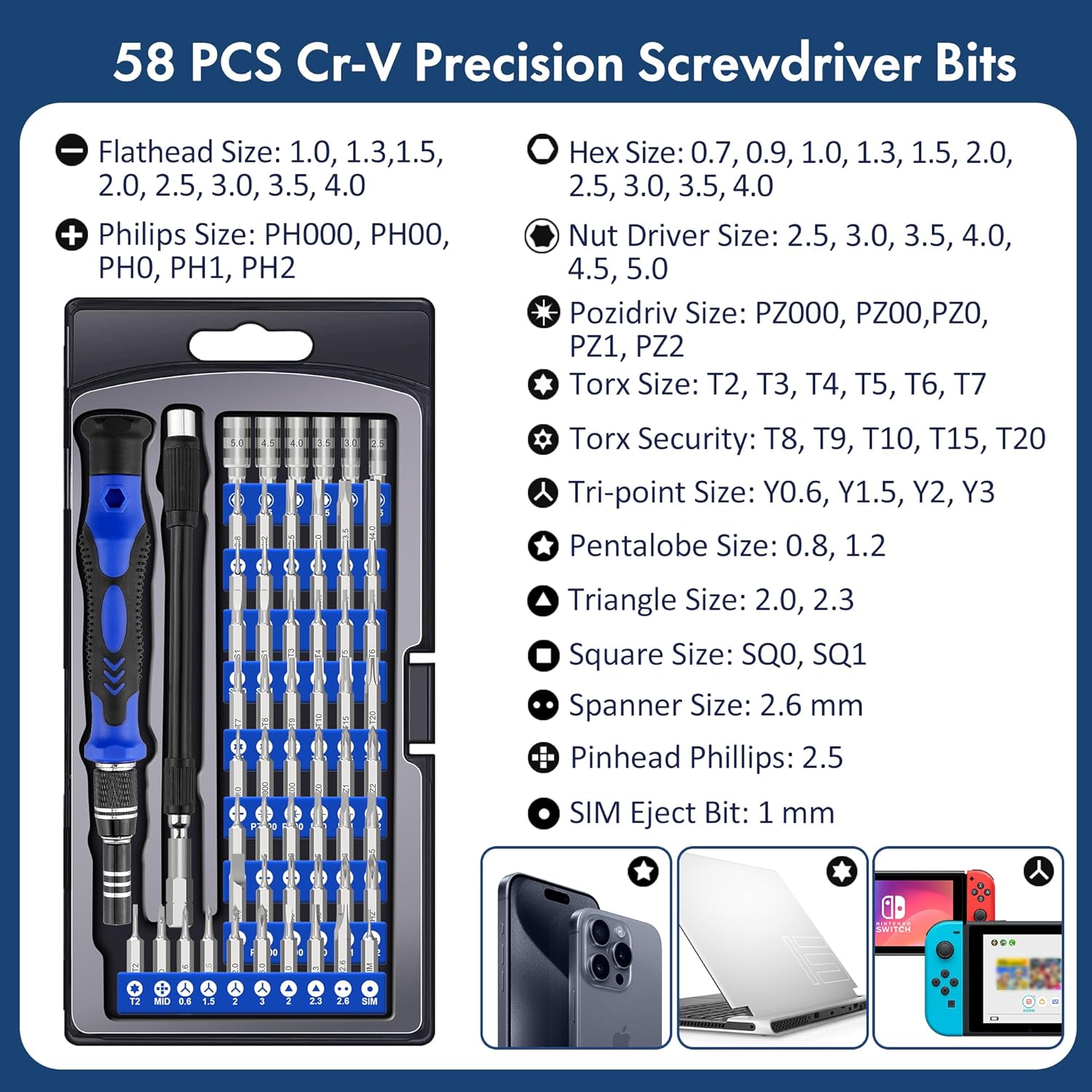
General Toolset Notes
- Torx Bits: Can be used for Allen Key bolts and screws.
- Pentalobe Bits: Used almost exclusively by and for Apple and Mac Computers.
Screwdrivers and Assembly
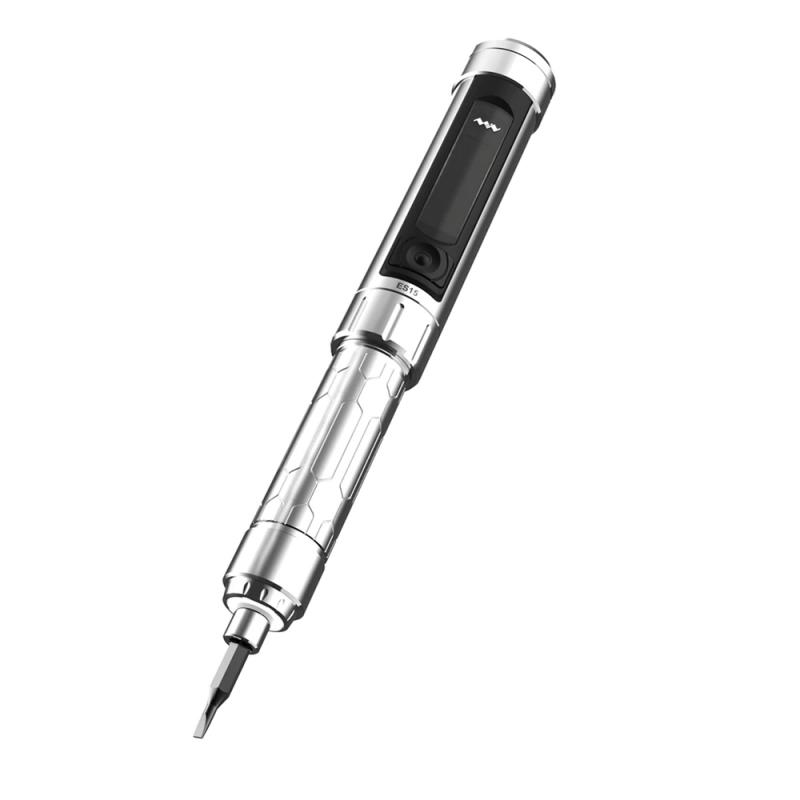
- Electronic Screwdrivers are great for general work and tear-down.
- I recommend using manual drivers for re-assembly, especially for delicate parts and assemblies, to avoid stripping threads or over-tightening.
⚡ Power Supply Unit (PSU) Tester
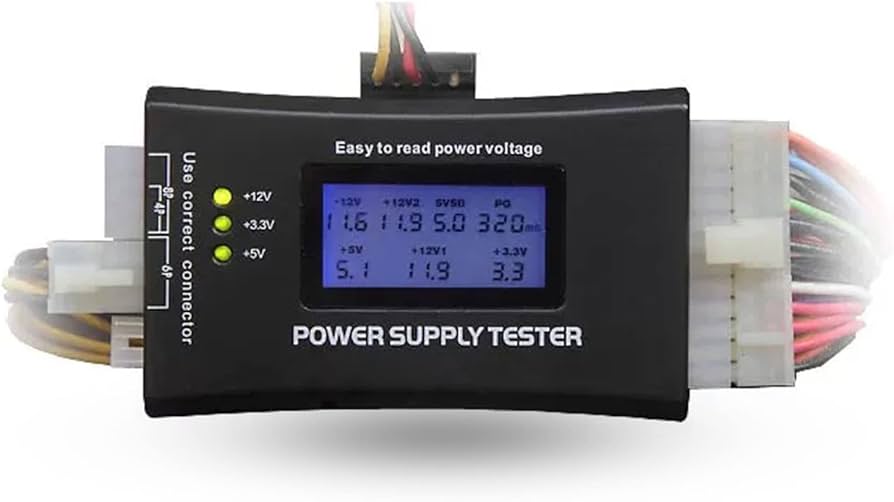
General Notes
- It’s typical for modern PSUs with 24-pin power cables to not have a -5v rail.
- PG = Power Good Rating (Range: $0-500$ ms).
- Older PSUs: Rating should be no higher than $500$ ms and no lower than $200$ ms.
- Newer PSUs: Rating should be no higher than $500$ ms and no lower than $100$ ms.
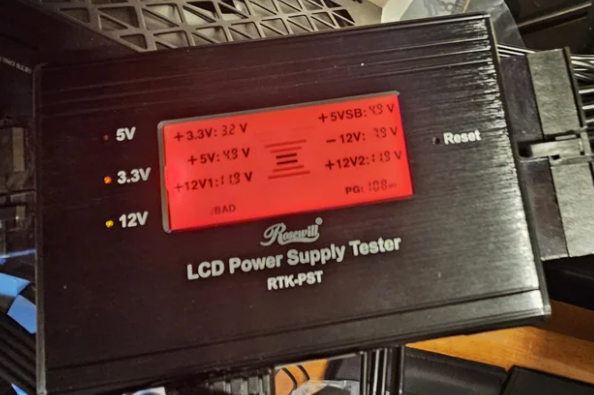
🌡️ Thermal Compound
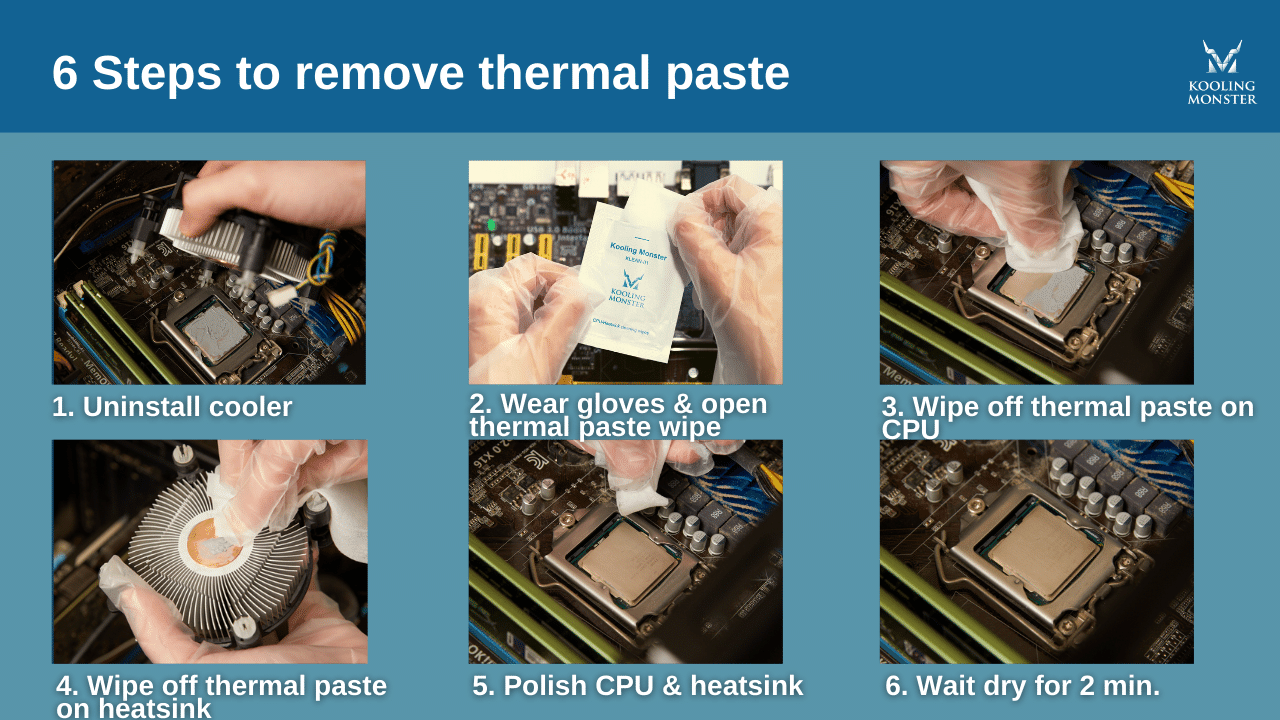
Compound Removal
Compound Application
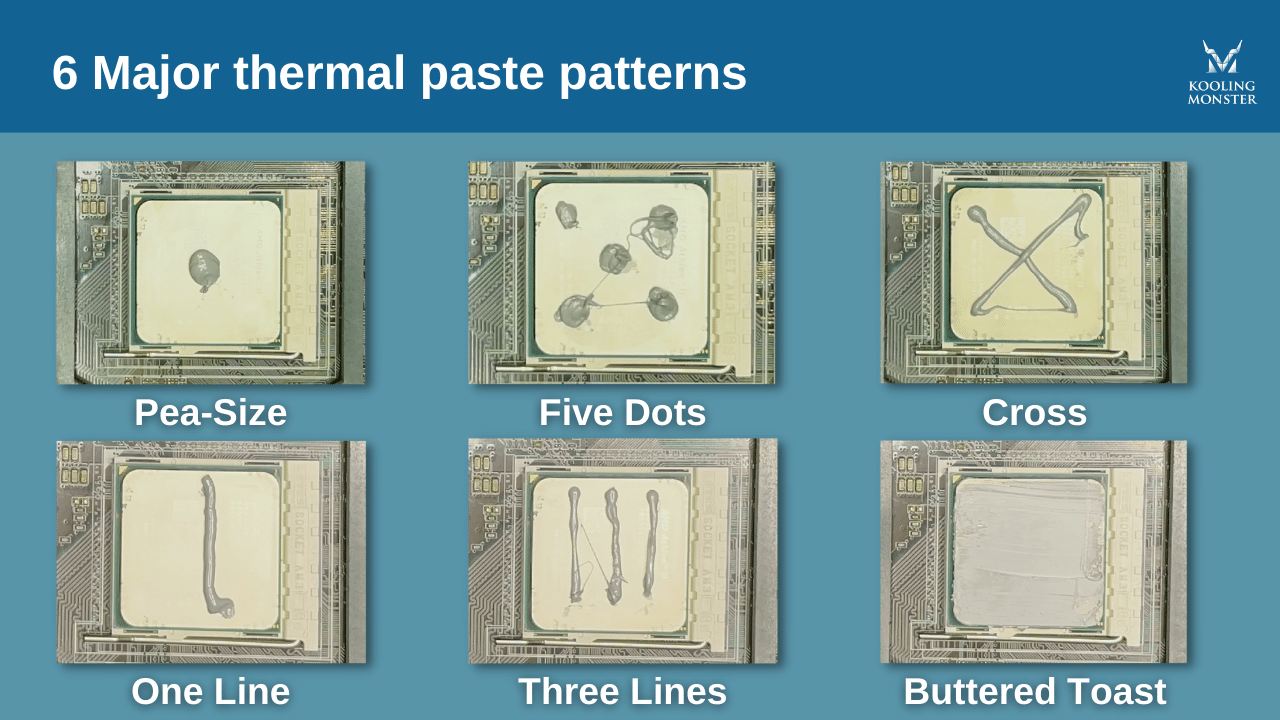
We typically use the “Five Dots” or “Buttered Toast” application methods for large processors.
For smaller chips/chipsets, the “Pea-Size” application method works just fine.
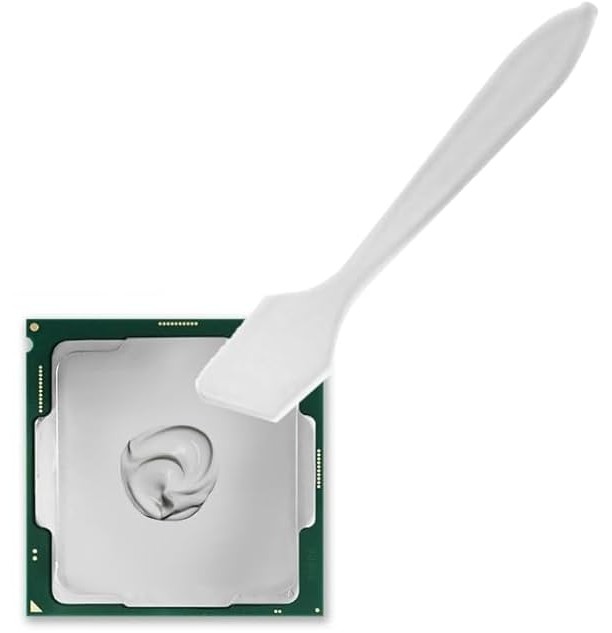 - Thermal Compound Plastic Applicator
🔌 Pockethernet Ethernet & Network Tester
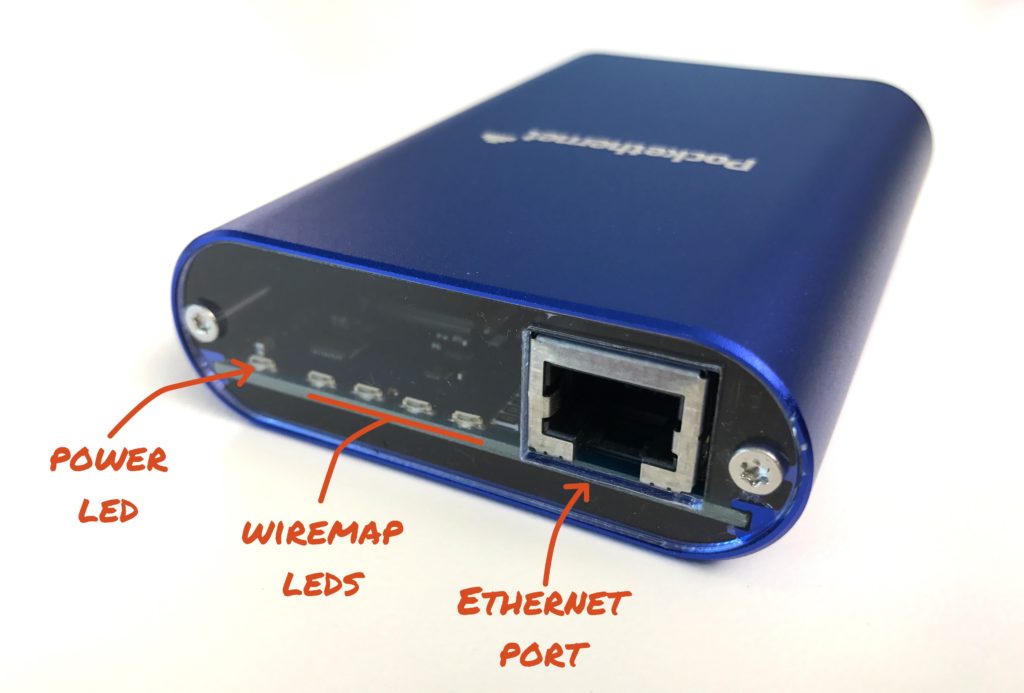
Pockethernet: Wiremap Test
The Wiremap Test requires the Pockethernet Wiremap Adapter to be connected to the other end of the tested cable run. Pockethernet is only compatible with its own wiremap adapters.
- Purpose: Determines if a pin on one connector is connected to the correct pin at the other end.
- Measuring against a connected Ethernet port will likely display short circuits due to the port’s termination transformer.
Wiremap Status Summary
The status summary line tells you the type of cable connected or the fault.
OK (Green Indicator) Configurations:
- 4-pair straight through
- 4-pair full crossover (all 4 pairs crossed)
- 4-pair mixed crossover (2 pairs crossed, 2 pairs straight)
- 2-pair straight
- 2-pair crossover
Miswire (Red Indicator): Any other configuration.
Graphical Wiring Diagram
- Shows the status of each individual wire.
- Connected pins are shown on the right side.
- Short Circuits: Shown with a red vertical connection.
- Opens: Shown in the middle as a break in the line.
- The pair numberings and colors are based on the TIA colour scheme selected in the tools $\Rightarrow$ settings menu.
Pockethernet: Time-Domain Reflectometry (TDR)
The TDR-based, single-ended length measurement and fault locating tests the physical properties of a cable with just one end connected to Pockethernet.
- See how long the cable is.
- Detects short circuits or bad terminations.
- Detects if the cable is connected to a switched-off computer or switch.
Main Status Line Results
The main status line shows the overall result. If pairs are terminated differently, it displays “Mixed results”.
| Status | Result Interpretation |
|---|---|
| Open | Cable is not connected to anything. |
| Short Circuit | There’s a short circuit somewhere in the cable. |
| Terminated | Cable is connected to an Ethernet port. |
Note: Results will be invalid when measuring an active Ethernet port as its signals interfere with the TDR measurement. The NVP (Nominal Velocity Propagation) of the cable can be set in the Settings.
Length: Cannot be determined if the cable is connected to another Ethernet port, as proper termination doesn’t provide reliable signal reflections.
TDR Graph
This feature allows you to see the imperfections of a cable along its whole length.
- A short electrical pulse is sent down the cable, which is reflected from imperfections or absorbed by proper termination.
- Results require some expertise to evaluate.
- Generally, an impedance mismatch value above $\pm 20$ indicates a cable imperfection that can influence signal and connection quality.
| Impedance Mismatch Type | Result Interpretation |
|---|---|
| Positive Reflection | From open ends. |
| Negative Reflection | From shorted ends. |
The crosstalk graph gives information about any locations with crosstalk issues.
Note: Results will be invalid when measuring an active Ethernet port.
Example TDR Diagnoses
- Cable with increased crosstalk at its end ($20\text{m}$) due to a split cable.
- Impedance mismatch caused by a Cat5 back-to-back Ethernet coupler connecting a $20\text{m}$ and a $50\text{m}$ Cat6 cable.
Pockethernet: Power over Ethernet (PoE) Test
This test verifies the presence of a PoE supply on the cable. It detects standard 802.3 AF/AT/BT and passive ‘always-on’ supplies.
- Determines the PSE type (Power Sourcing Equipment).
- Measures open circuit and loaded voltage.
- Establishes the maximum power class supported/allowed.
Test Error Indicators:
- Open/load voltage is below $37\text{V}$ for an AF/AT power supply.
- Open/load voltage is below $42\text{V}$ for a BT power supply.
- The difference between the Mode A / Mode B voltage is greater than $10\%$.
Pockethernet: Link Test
Determines if an Ethernet link can be established and what the highest achievable speed is.
- If a $1000\text{BASE-T}$ link is established, the details provide information on:
- Advertised link speeds.
- Polarity of each wire pair.
- Skew delay for each pair (should be below $56\text{ns}$ per $100\text{m}$ of cable).
- Length Estimate: Calculated based on link training parameters ($\pm 20\text{m}$ error). Ideally, this shouldn’t exceed $100\text{m}$.
- Supported Speeds: Pockethernet detects speeds advertised up to $10\text{GBASE-T}$ but will only establish a link up to $1000\text{BASE-T}$ for link-up testing.
- Actual Ethernet communication (DHCP, ping, etc.) is performed over a $10/100$ link.
Pockethernet: CDP / LLDP Test
- Pockethernet waits for up to $30$ seconds after link establishment to receive CDP (Cisco Discovery Protocol) or LLDP (Link Layer Discovery Protocol) packages.
- These contain diagnostic information about the connected switch or router (port ID, system name, management IP address).
- Information fields (TLVs) are listed in the details section.
Pockethernet: VLAN Test
Used to see any VLANs active on the port or to set the VLAN tags for outgoing packets.
- Waits for $30$ seconds for incoming packets and lists any detected VLAN tags.
- If “Outgoing VLAN tagging” is enabled, all outgoing packets (DHCP request, Ping, ExtIP) are tagged for communication through a specific VLAN.
Pockethernet: IPv4 (DHCPv4) Test
- Tests the network’s DHCP settings.
- Pockethernet can request its IPv4 configuration via DHCP.
- Allows setting up static IPv4 settings for subsequent tests.
- Waits for $30$ seconds for a DHCP request to succeed.
Pockethernet: IPv6 (SLAAC/DHCPv6) Test
- Checks if IPv6 SLAAC (stateless autoconfiguration) or DHCPv6 is available.
- Waits for $30$ seconds for Router Advertisement messages needed to establish IPv6 parameters.
Pockethernet: Ping Test
- Can perform ping tests for up to three IP addresses or domain names.
- Results include the pinged IP address (useful for DNS resolution) and the average ping time of 3 measurements.
- Default Pings (if no addresses specified):
- DHCP server
- Gateway
- DNS server
Pockethernet: External IP Test
- Checks for an Internet connection and determines the external IP address.
- Uses an external server (provided by
ip-api.com) to establish IP information, ISP, AS name, and approximate physical location.
Pockethernet: Quick Test Function
Allows basic network status testing without the app.
- While powered on, connect the cable and press the power button once.
- Performs the following tests: Wiremap, PoE, Link, DHCPv4.
- Results are indicated via the device LEDs.
Quick Test LED Indicators
| LED | Color | Result |
|---|---|---|
| Cable & PoE | Green | Straight through or crossover cable detected (no further tests performed). |
| Cable & PoE | Yellow | Cable open. |
| Cable & PoE | White | Short circuit (fault or Ethernet port connected). |
| Cable & PoE | Blue | PoE supply detected. |
| Link | Green | A 10-1000M link is detected. |
| Link | Unlit | No link detected. |
| Network | Green | A DHCPv4 address was obtained. |
| Network | Unlit | No DHCPv4 address obtained. |
❓ Frequently Asked Questions (FAQ)
The app can’t connect via Bluetooth with “Error connecting”
- This error is often reported by the Pockethernet v1 app.
- Make sure to use the “Pockethernet 2” app with the v2 device.
The device doesn’t turn on
- Perform a hard reset: With the USB power not connected, press and hold the power button for 20 seconds.
Firmware update error: “Update Error: No Ethernet Link”
- The firmware update needs to establish a $10\text{Mbit}$ link.
- Multi-Gbit ports may not support $10\text{M}$ links.
- Use a port with a maximum speed of $1\text{G}$ for the update.
🔌 netool.io Lite Network Tester
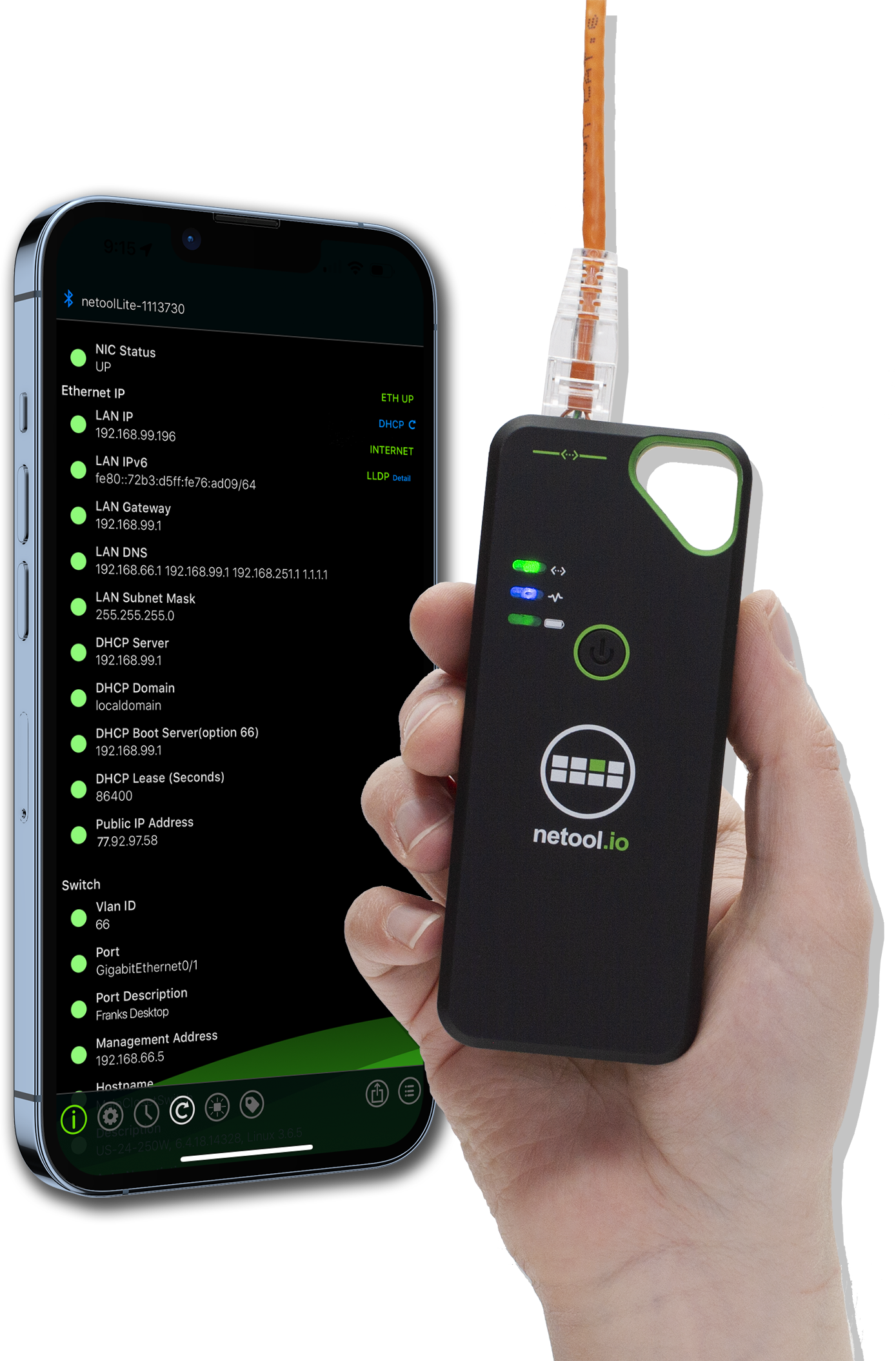
netool.io Lite: Link Layer Information (LLDP/CDP/Vendor)
The netool.io Lite automatically gathers link-layer information from the connected switch or router.
Purpose: Identifies the connected port, device, and other diagnostic data.
- CDP (Cisco Discovery Protocol) / LLDP (Link Layer Discovery Protocol): Displays detailed information fields (TLVs) broadcast by the switch, which can include:
- Port ID
- System Name (Device Hostname)
- Management IP Address
- VLAN Information
- Model/Capabilities
- Vendor Discovery: In the absence of CDP/LLDP, netool.io Lite can often determine the manufacturer and model of the connected switch or access point (AP) based on its MAC address or unique characteristics.
netool.io Lite: IP Information (DHCP, Static, & Ping)
This feature tests the network’s IP configuration and connectivity.
- DHCPv4/v6:
- Automatically attempts to receive an IPv4 configuration via DHCP.
- Displays the assigned IP Address, Subnet Mask, Default Gateway, and DNS Server(s).
- Can also test for IPv6 SLAAC (Stateless Address Autoconfiguration) or DHCPv6 availability.
- Static IP: Allows setting a static IPv4 address for use in subsequent connectivity tests if DHCP fails or isn’t desired.
- Ping Test: Performs a connectivity test to specified targets to check reachability and measure latency.
- Default targets usually include the Default Gateway and DNS Server.
netool.io Lite: Power over Ethernet (PoE) Test
This test verifies the presence and type of PoE supply on the connected cable.
- PoE Detection: Automatically detects standard and proprietary PoE supplies.
- Identifies standard types like 802.3af (PoE), 802.3at (PoE+), and potentially newer standards like 802.3bt (PoE++).
- Detects Passive PoE (“always-on”).
- Measurements: Measures the applied voltage and determines the PoE mode (Mode A/Endspan, Mode B/Midspan, or 4-Pair).
- Maximum Power Class: Determines the maximum power class the Power Sourcing Equipment (PSE) is advertising.
netool.io Lite: VLAN Test
This feature helps identify VLAN tagging on the port and allows the user to test connectivity within specific VLANs.
- VLAN Identification: Displays the VLAN ID(s) received in tagged packets or reported by CDP/LLDP.
- Outgoing VLAN Tagging: Allows the user to manually set an outgoing VLAN tag (e.g., VLAN 10) for all outgoing traffic (DHCP, Ping, etc.) to test if a specific VLAN is correctly configured and working.
netool.io Lite: Switch Port Information
Identifies the physical characteristics and speed of the connected switch port.
- Link Speed & Duplex: Confirms the established link speed (e.g., 10/100/1000 Mbps) and duplex setting (Half or Full).
- Advertised Speeds: Lists the speeds the connected switch port is advertising its capability to support.
netool.io Lite: Wi-Fi Hotspot & Cloud Features
Unlike many traditional handheld testers, the netool.io Lite operates primarily through an app and provides remote and cloud functionality.
- Internal Wi-Fi Hotspot: The netool.io Lite creates its own Wi-Fi hotspot to allow the user’s mobile device (phone/tablet) to connect and run the app-based tests.
- Cloud Functionality (netool.cloud):
- Save/Share Results: Test results can be saved to the cloud for later review, documentation, and sharing with colleagues.
- Remote Access: Allows for remote connection to a netool.io Lite that is already connected to the network and configured, enabling troubleshooting from a different location.
netool.io Lite: Display & Operation
The device uses a simple screen and indicator lights for instant feedback, with detailed results delivered via the companion app.
- On-Device Display: A small, integrated screen provides instant information such as Link Status, PoE presence, and IP address.
- App Integration: All detailed test results, including CDP/LLDP information, full DHCP details, and advanced settings, are displayed within the netool.io app on the connected smartphone or tablet.
🧰 Reference Manuals
PocketEthernet
- Manual: https://pockethernet.com/manual-pockethernet-1/
Netool.io Lite
- Manual: https://docs.netool.io/en/lite/manual