Motherboard Testing
📋 Motherboard Testing
“RAM Pull” Motherboard Functionality Test
-
Install a speaker on the motherboard’s speaker header if a speaker is not already present.
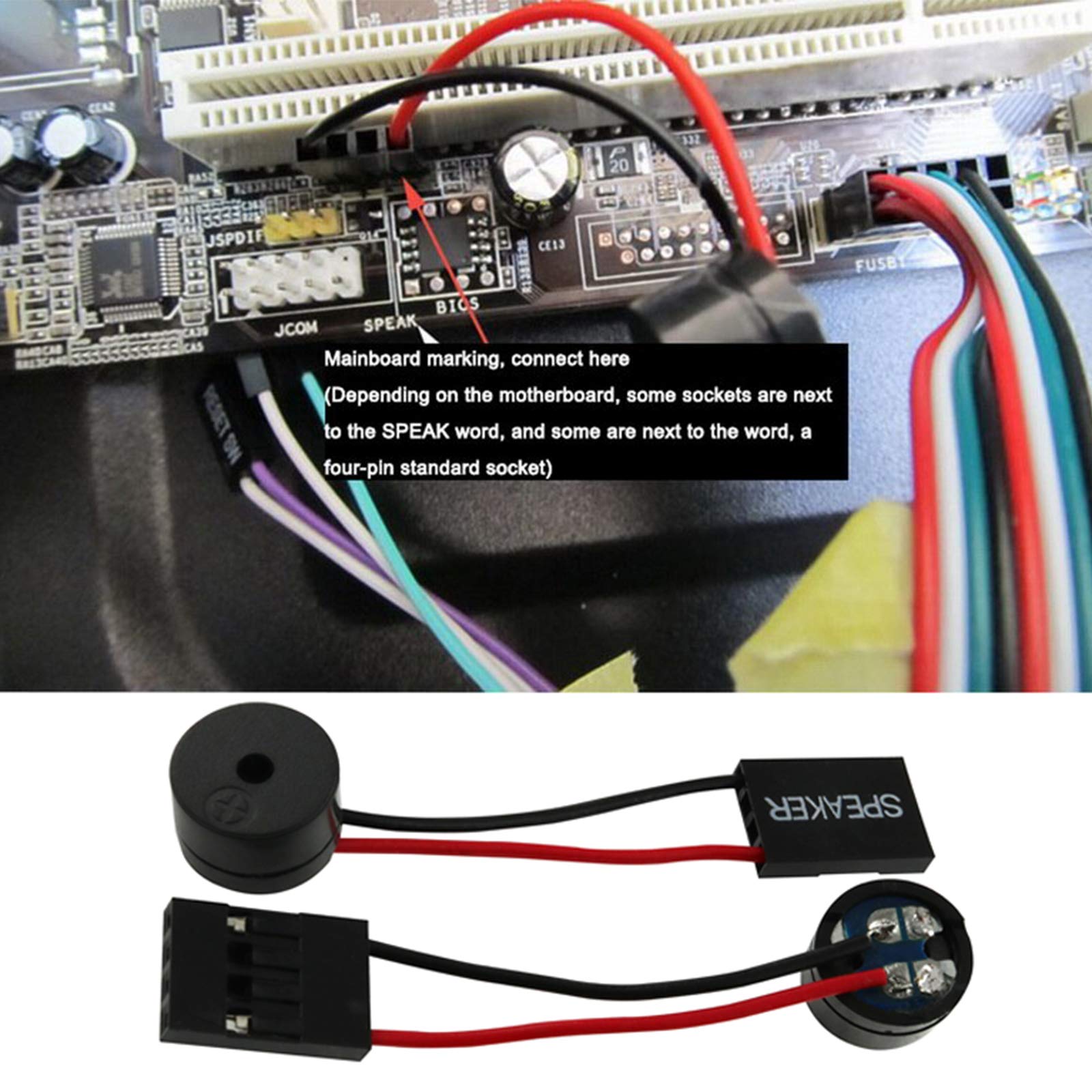
-
Pull the RAM from the system and the motherboard should generate a BIOS beep code error for missing RAM (it will do the same for a bad CPU, GPU, etc.)
-
If no beeps emit, double check the speaker connection.
-
If still no beeps, you likely have a bad motherboard.
Test a Motherboard Using a POST Code Diagnostic Card
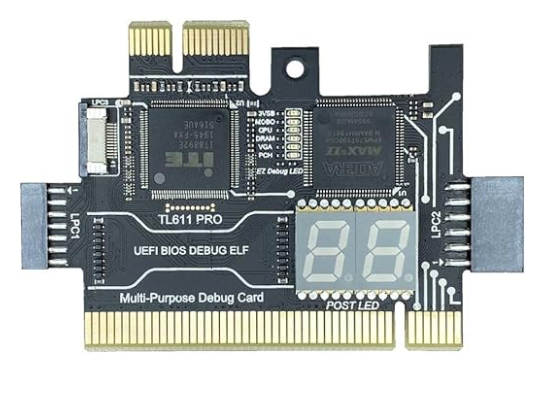
Multi-Purpose Debug Card with LED display for POST codes
Step 1: Prepare the System
-
Turn Off the Computer – Unplug it from the power source.
-
Open the Case – Remove the side panel to access the motherboard.
- Remove Unnecessary Components – To isolate the issue, remove:
- GPU (if applicable; do NOT remove the GPU if the CPU does not have an embedded GPU)
- Any storage devices (HDD/SSD)
- Any additional PCIe cards
- External peripherals (USB devices, etc.)
- Leave Only the Essential Components:
- Motherboard
- RAM
- CPU
- Power Supply
Step 2: Insert the POST Diagnostic Card
- Locate a Compatible Slot – Most diagnostic cards use PCI, PCIe 1X, or LPC headers.
- DO NOT INSERT/USE the POST Diagnostics Card in the board’s PCIe 16X SLOT!!
-
Insert the Card Properly – Ensure it’s seated correctly in the slot.
- Connect Power to the Motherboard – Plug in the 24-pin ATX power and 8-pin CPU power from the PSU.
Step 3: Turn On the System and Read the Codes
-
Power On the System – Press the power button and observe the LED display on the diagnostic card.
-
Watch the POST Codes – The card will display hexadecimal error codes as the motherboard runs its POST sequence.
Step 4: Interpret the Codes
-
Refer to the motherboard manual or the diagnostic card’s documentation to decode the numbers.
-
Common POST codes:
- 00 / – → No power or dead motherboard
- C0, C1, C3 → RAM issues
- D0-DF → CPU or motherboard failure
- 50-55 → Memory issues (incompatible or missing RAM)
- A2 / A3 → Storage device detection error
- FF → Motherboard failure (sometimes means “fully functional” on certain brands)
Step 5: Troubleshoot Based on the Code
-
If the code suggests a RAM issue, try different RAM sticks or slots.
-
If the code indicates a CPU problem, check for bent pins in the CPU socket.
-
If the card doesn’t light up at all, the motherboard may be completely dead.
Step 6: Retest with Minimal Components
- If you receive an error, retest with a different power supply, a known-working CPU, or a different RAM stick.
What If No POST Codes Appear?
-
Check the power supply – Ensure it’s functioning correctly.
-
Ensure proper insertion – The card should be fully seated in the slot.
-
Try a different slot – If available, test the card in another PCIe or PCI slot.
-
Verify motherboard functionality via the “RAM Pull” test described at the beginning – If the motherboard still doesn’t respond, it may need replacement.